
SimpleFX
One screen to set up a Datapath Fx4-HDR · Mac and Windows
SimpleFX is a free tool from A to V that sets up a Datapath Fx4-HDR from one screen. Find the unit on the network, set the input size and the refresh rates it offers, place each output on the input canvas, and push. It runs on a Mac or a Windows PC on the same network as the Fx4.
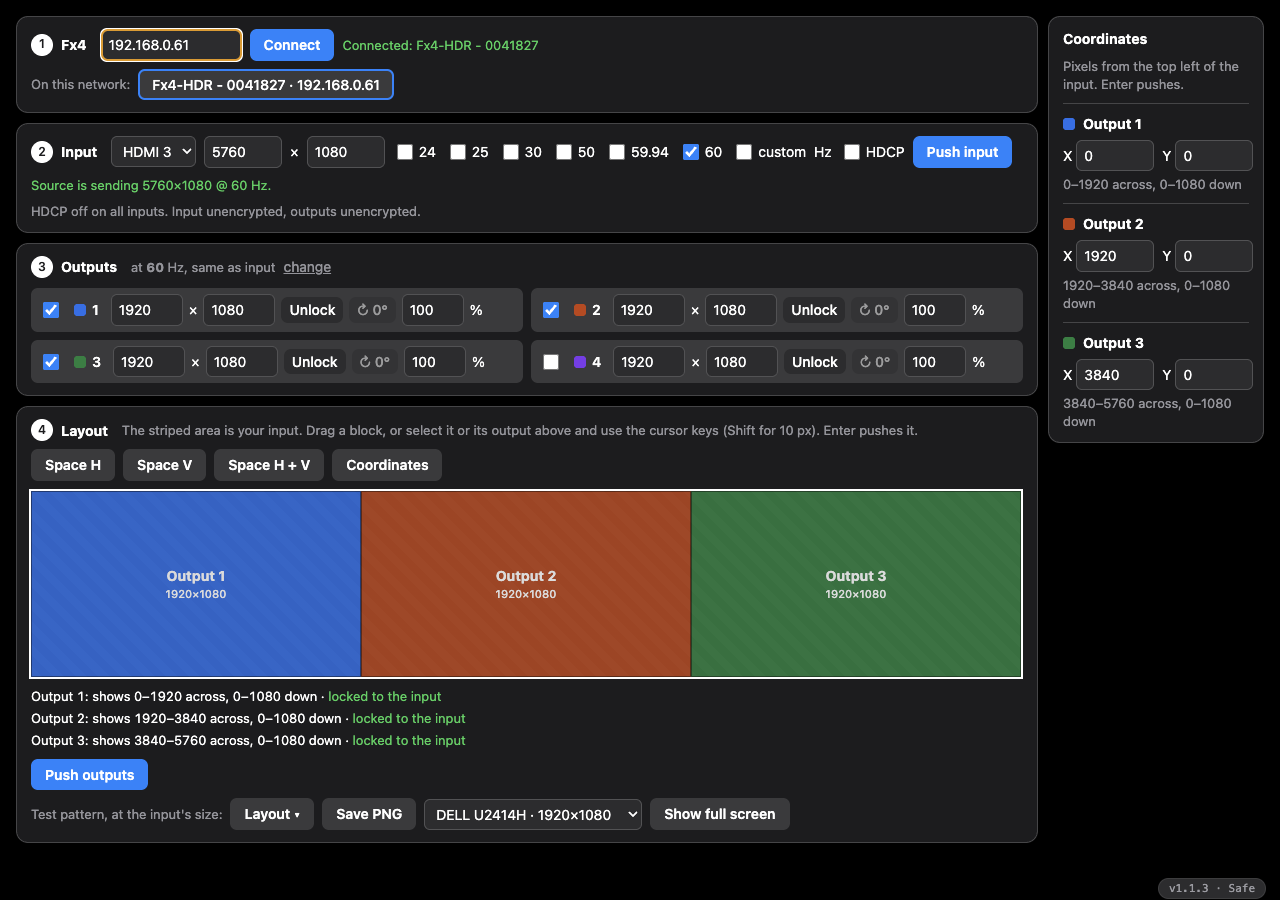
A 5760 x 1080 input split across three 1920 x 1080 outputs.
The four steps run top to bottom on one screen. Connecting only reads from the unit: nothing is sent until you press a Push button.
1. Find the Fx4
SimpleFX lists every Fx4-HDR it hears on the network. Click one to connect, or type its IP address. The page then fills in with what the unit holds now: its input, its outputs and where each one sits.
You do not need a unit to hand to plan a job. Steps 2 to 4 work with nothing connected, so layouts and test patterns can be made anywhere. Only the two Push buttons need an Fx4.
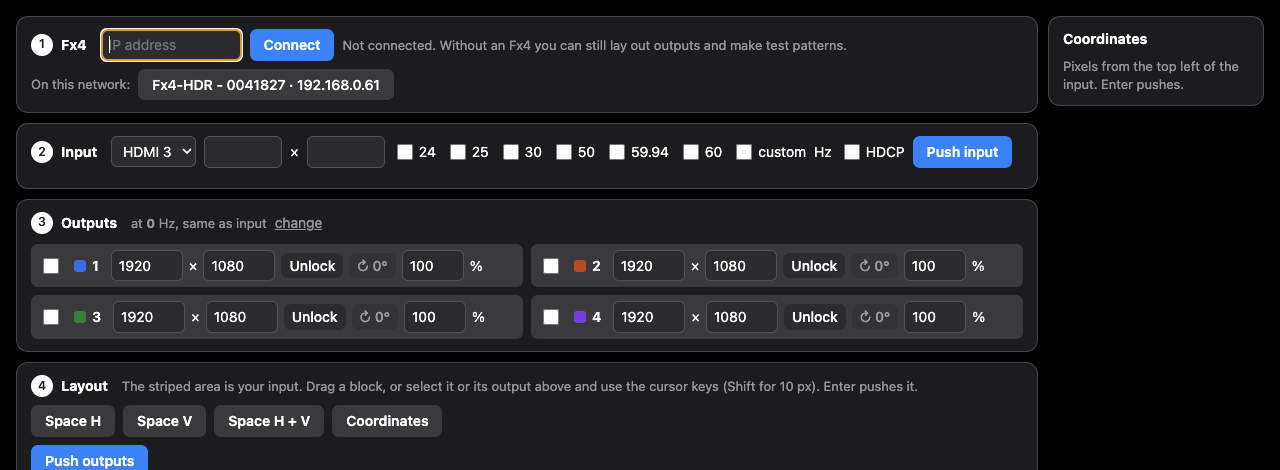
An Fx4-HDR heard on the network, ready to connect.
2. Set the input
Pick the HDMI input, type the width and height, and tick the refresh rates the source should be offered: 24, 25, 30, 50, 59.94, 60 or one of your own. Push input writes the EDID and makes that input the one in use.
Inputs wider than 4095 pixels are offered as one ordinary display, with no tiling. Up to four rates fit past 4095 wide, and seven up to it.
A line under the input says what the source is really sending, so you can see when it has not picked up the new mode. Modes above about 300 MHz need HDMI 3, and SimpleFX warns you if you ask for one on HDMI 1 or 2.
HDCP is one tickbox, off by default, applied to all three inputs when you push.
3. Tick the outputs
Tick the outputs you are using, 1 to 4, and give each its width and height. They follow the rate the source is on unless you change it by hand.
Each output can also be turned a quarter turn at a time and scaled by a percentage. Both sit behind that output’s Unlock, which locks again after every push.
4. Lay them out
The striped area is your input, and each output is a block on it. Drag a block, select it and use the cursor keys (Shift for 10 px), or type its coordinates. Space H, Space V and Space H + V share the outputs out evenly across the canvas and report the overlap, which is what a projector blend needs.
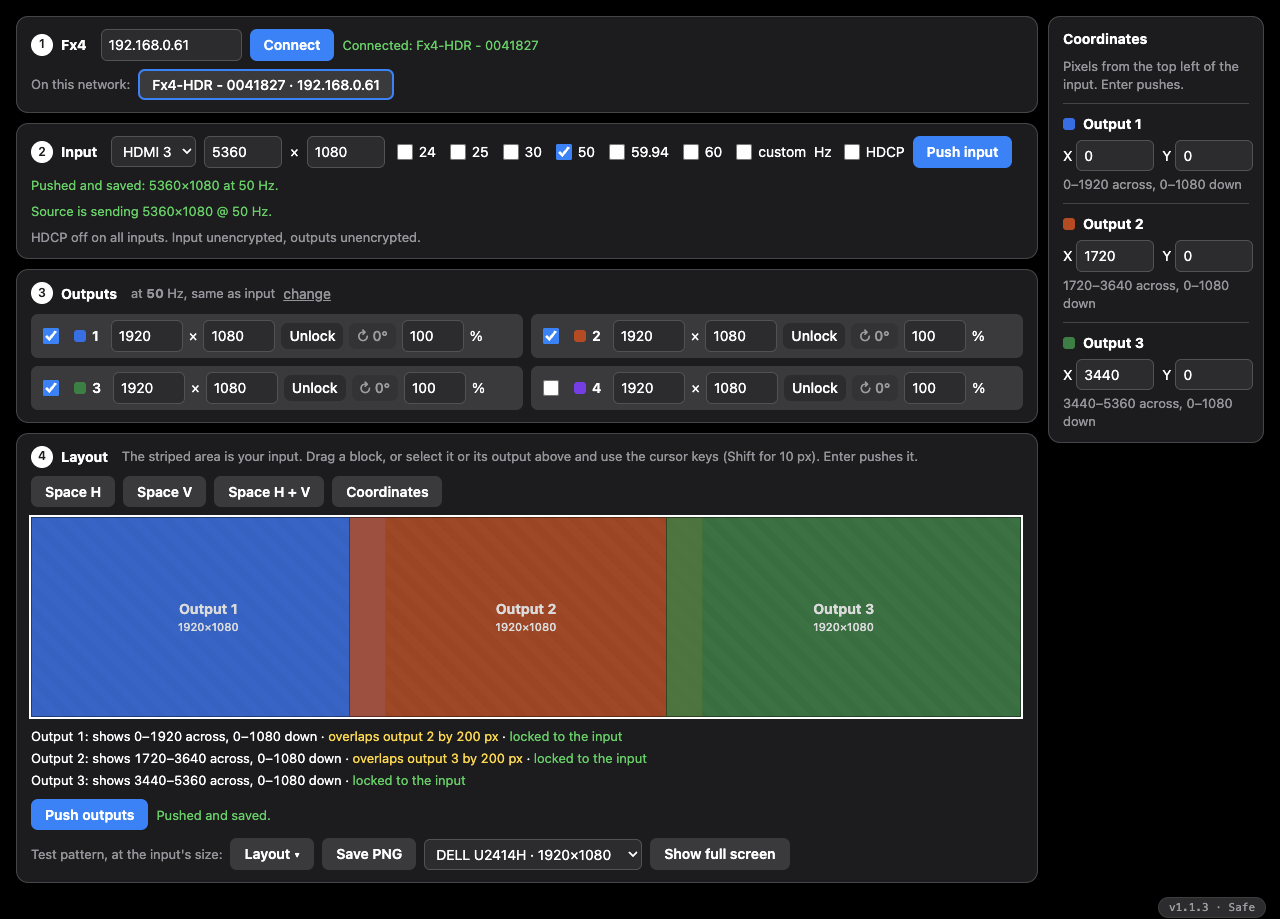
Three 1920-wide outputs across a 5360 x 1080 input: 200 px of overlap at each join.
Under the canvas, each output reads back what it shows to the pixel, whether it overlaps a neighbour, and whether it is locked to the input. Push outputs sends the crops.
Test patterns
SimpleFX makes a test pattern at the input’s size. The Layout pattern draws each output’s piece in its colour with its edges, a circle and a label, names every overlap with its size, and stripes anywhere no output is looking. Labels are drawn the way up each output will show them, so a wrong quarter turn shows straight away.
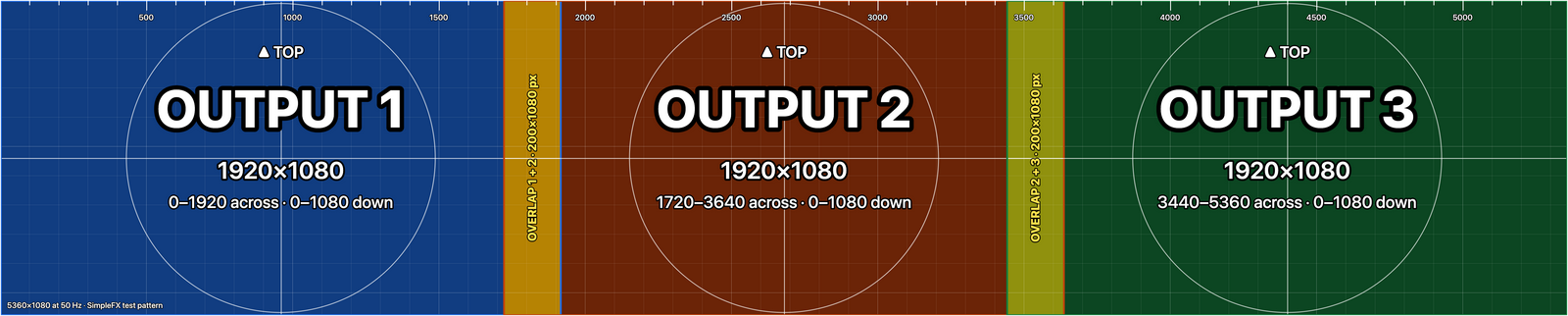
The Layout pattern for the blend above, at 5360 x 1080.
Patterns are picked from a dialog that shows each one drawn from your layout.
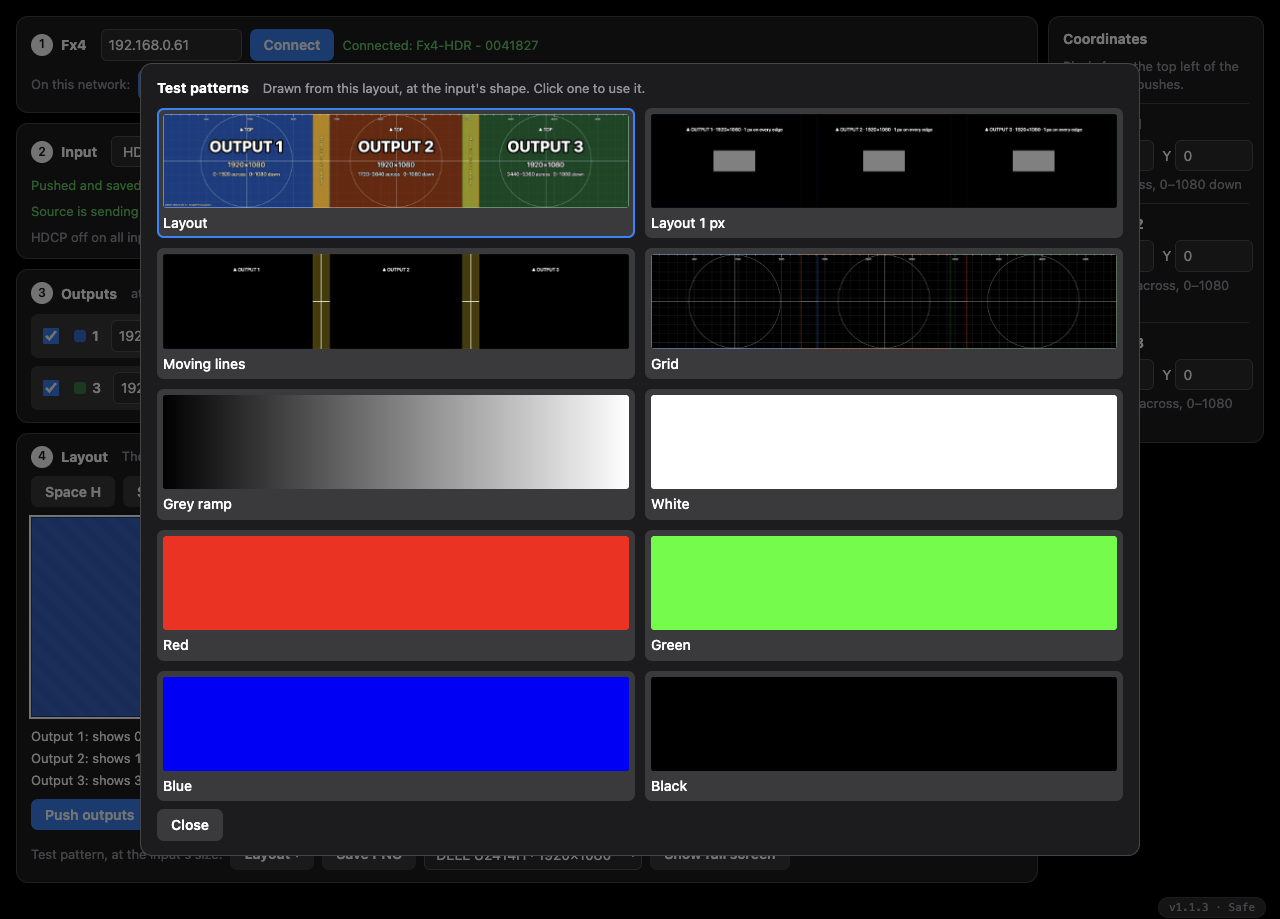
The pattern picker, drawn from the same blend.
Layout 1 px draws each output’s outermost pixels as a 1 px line in its colour, so a crop that is a pixel out shows as a lost or doubled line. Moving lines, for full screen only, runs a line across and a line down each blend, or over the whole input when there are no blends. There is also a grid, a grey ramp and solid white, red, green, blue and black.
Save a pattern as a PNG to play from a media server, or show it full screen on a display connected to the computer, where the ← and → keys step through them.
What you need
- A Datapath Fx4-HDR on the same network as the computer
- A source on one of its HDMI inputs. Modes above about 300 MHz need HDMI 3.
- A Mac (Apple silicon or Intel) or a Windows PC
Worth knowing
These come from our own testing on real units running firmware 1.1.0, not from a spec sheet.
- Every push saves to the unit’s flash, along with anything else changed on it since its last save.
- In our testing a Mac does not send a mode between 300 and 340 MHz. Where it can, SimpleFX tightens the timing to bring such a mode just under 300 MHz: 5360 × 1080 at 50 Hz then runs from a Mac. Where it cannot, as with 5760 × 1080 at 50 Hz, it warns you. A PC may still take it.
- After a wide EDID changes, Windows comes up on 1080p. The wide mode then has to be chosen by hand in its display settings.
Free, and as-is
SimpleFX is free of charge and provided as-is, with no warranty of any kind. A to V Limited accepts no responsibility for your hardware, your setup or your show. Test it well before show day, as you would any tool that touches a processor.
SimpleFX is not a Datapath product, and Datapath does not support it. Datapath and Fx4 are trademarks of Datapath Limited.
Download
For Mac and Windows. These links always fetch the newest version.
- Mac, Apple silicon (.dmg)
- Mac, Intel (.dmg)
- Windows installer (.exe)
- Windows portable (.exe, no install needed)
Release notes and earlier versions are on the releases page.
macOS: open the .dmg and drag SimpleFX to Applications. The app is not notarised, so the first launch needs one extra step: open System Settings → Privacy & Security, scroll down, and click Open Anyway next to the SimpleFX message. If macOS asks to let it use the local network, allow it, or it cannot find or reach your units.
Windows: run the installer, or the portable .exe. If SmartScreen shows “Windows protected your PC”, click More info → Run anyway. If Windows Firewall asks, allow it, or the list of units may stay empty. You can still type a unit’s IP address.
We hire the Datapath Fx4-HDR and the rest of our signal processing stock. Get in touch if you want the kit and the people who know it. Our other free tools are Bigger Mac and HyperDeck Monitor.