
Bigger Mac

Bigger Mac

One Thunderbolt out → 2 × DisplayPort in · Encore 3 / E2

Bigger Mac is a free tool from A to V that puts one Mac across two DisplayPort inputs on a Barco Encore 3 or E2, so macOS drives the pair as a single super-wide display rather than two separate screens.

The problem it solves

A standard EDID cannot describe a display wider than 4095 pixels. The detailed timing descriptor that carries the resolution has only a 12-bit field for horizontal active pixels, so that is the hard ceiling of the format itself — nothing to do with the processor or the cable. Going wider needs a DisplayID extension block, and that is where the difficulty starts.

So a canvas wider than 4095 — which is most modern LED walls and most wide-format stage sets — cannot simply be handed to a source as an ordinary EDID and asked for.

And two outputs tear

The obvious workaround is two outputs from the Mac, one into each input. It looks like it works until something moves across the join. Two outputs are two independent displays with their own timing, refreshing on their own clocks — so a video, a wipe, a scrolling lower third, even the mouse, tears or steps at the seam.

What that has ruled out

Between them, those two facts have kept Mac-based media servers off wide walls. QLab and Millumin are macOS-only — there is no Windows build to fall back on — so a canvas wider than 4095 ruled them out entirely, and the wall had to be narrow enough or the show moved to different software. Resolume and others run on both, but then the job leaves the Mac it was designed on.

Bigger Mac removes that limit. One canvas, one timing, as wide as the processor and macOS will carry — which opens the whole Mac media-server catalogue up to walls that were previously out of reach.

Presentation software is stricter still. Keynote and PowerPoint output a slideshow to one display only — there is no setting that spans a deck across two. Give a Mac two outputs and the slides fill one half of the wall while the other half shows the desktop, or the presenter’s own notes. Tearing is not even the problem here; the deck simply cannot cover the screen.

With one wide canvas there is only one display to output to, so a presenter’s own MacBook drives the full width — slides, builds and video, edge to edge. On a wide conference set that has usually meant a Windows laptop or a scaler in the chain instead.

Why it is fiddly by hand

Making macOS treat the pair as one display means writing the correct EDID to each connector, carrying DisplayID tiled-display topology so the OS knows the two halves belong together, and building the matching combined input on the processor. Doing that by hand means crafting EDID binaries, uploading them to the right connectors, and configuring the tiled input — every time the setup changes.

What Bigger Mac does

It finds the processor on the network, builds the combined (tiled) input, and puts the right EDID on each connector. macOS then comes up with one wide display, at the width you asked for.

What you need

  • A Barco Encore 3 (any firmware) or E2 / E2 Gen 2
  • The Mac connected by Thunderbolt to dual DisplayPort, into two connectors on one DP 1.2 card. We use the StarTech Thunderbolt to Dual DisplayPort 1.4 adapter — one of these drives both processor inputs from a single Thunderbolt port
  • macOS 26 or later

The adapter link is an Amazon Associates link — as an Amazon Associate, A to V earns from qualifying purchases. It costs you no more, and it is the adapter we use ourselves.

Will it work at my width?

The limits below are from our own testing on real hardware, not from a spec sheet.

  • macOS 26 — up to 6144 px wide
  • macOS 27 — up to 12288 px wide

Worth knowing: if the full-width canvas fits inside a single DisplayPort 1.2 link, you do not need any of this — one connector will carry it on a straightforward EDID. Bigger Mac is for the canvases that do not fit.

Windows does not bond tiles at operating-system level at all, so the Mac path is the one this tool addresses.

How it works, screen by screen

Three steps: find the processor, describe the canvas, create it. The app checks as you go and reads the result back off the frame when it is done.

1. Choose a processor

The app sweeps the local network and lists what it finds, with the firmware version alongside. Click a unit to connect, or type an IP under Add IP if it sits on another subnet. Rescan looks again.
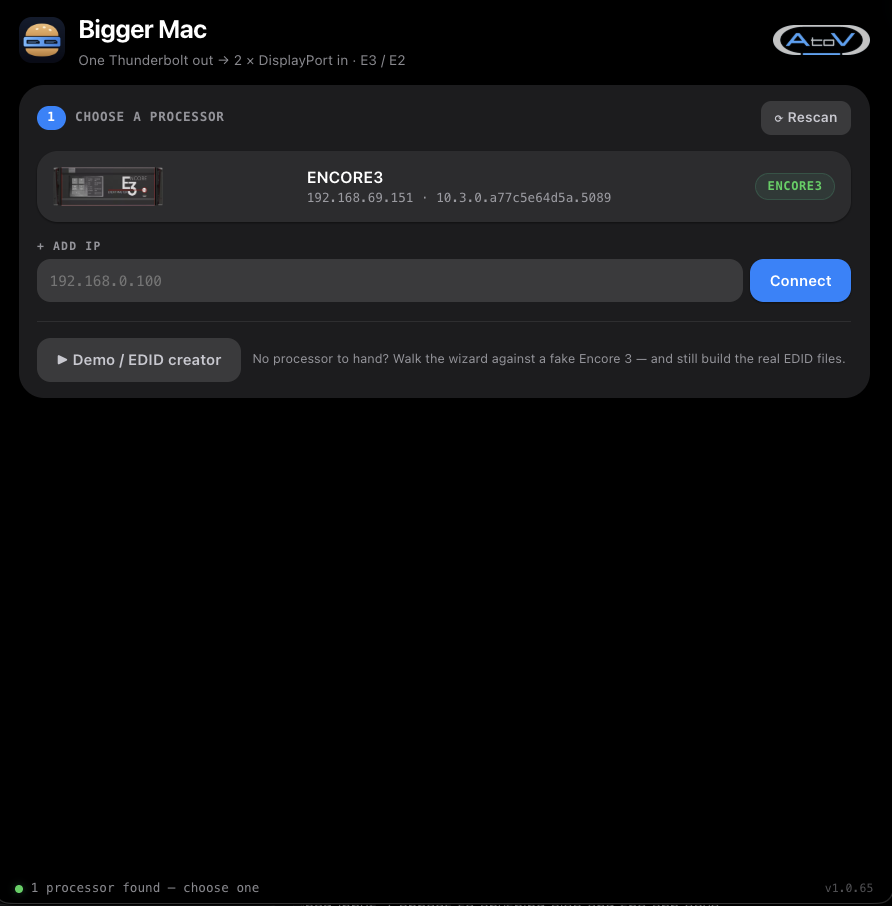
Bigger Mac finding a Barco Encore 3 on the network

Step 1 — the app has found an Encore 3 and is ready to connect.

There is also a Demo / EDID creator here. No processor to hand? Walk the whole wizard against a fake Encore 3 and still build the real EDID files, without touching any hardware. Useful for prepping a show from the office.

2. Size the canvas

Type the width, height, refresh and bit depth. The canvas appears in large figures with the macOS requirement under it — Runs on macOS 26 or later in green when you are inside the limits, or an amber warning when you are not.

Underneath, the app states exactly what the Mac will see: the number of tiles, each tile’s size, the refresh, the bit depth and the approximate pixel clock per link. Above roughly 550 MHz a link may not lock, and the figure is there so you can see it coming.

It also tells you the ceiling for what you have typed — Max height at 6144 × 60Hz, for instance — so you can trade height against width without guessing.

3. Choose the connectors

Pick Left and Right from the dropdowns, or click the connectors on the card map. Chosen ones turn green. The legend explains the rest of the colours: inputs, expansion, outputs, connectors about to be switched off, ones already off, and any that are unavailable.
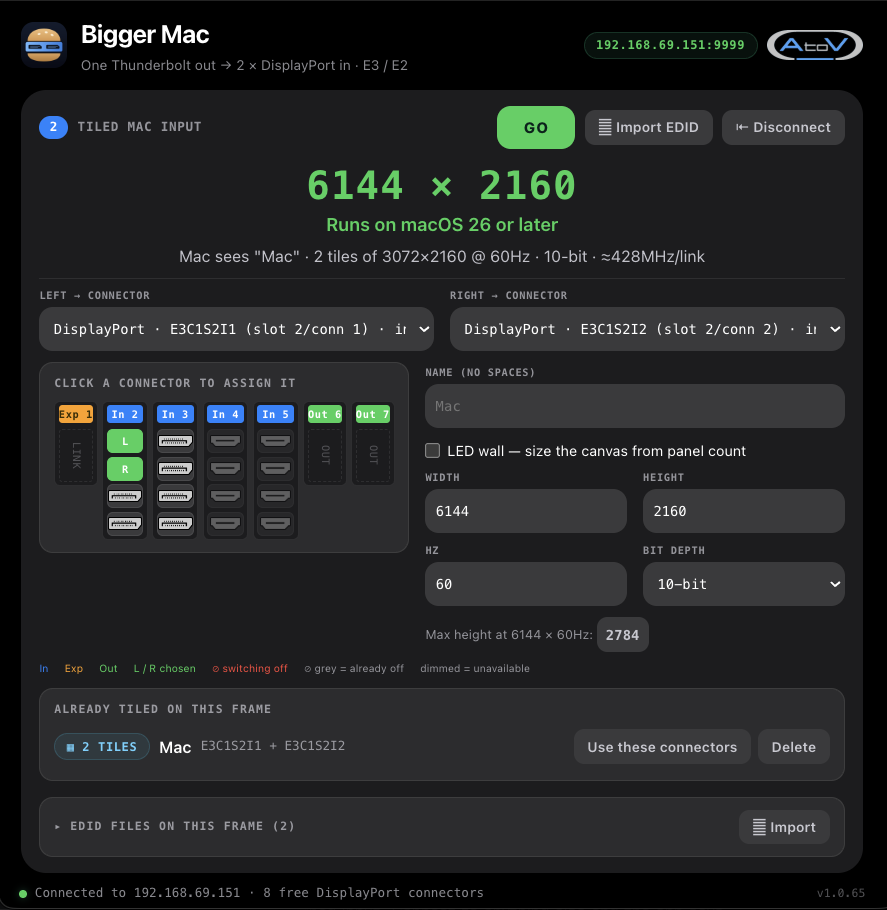
Bigger Mac canvas at 6144 x 2160 with left and right connectors chosen

Steps 2 and 3 — 6144 x 2160 across two connectors, ~428MHz per link.

Give the input a name (no spaces) and it is used for the input and both EDID files, so everything on the frame matches. Import EDID brings in an existing file if you would rather not build one.

4. LED wall — size the canvas from panel count

Tick this and you describe the wall instead of the pixels. Enter Panel px W and Panel px H, then Panels across and Panels down. The canvas follows.
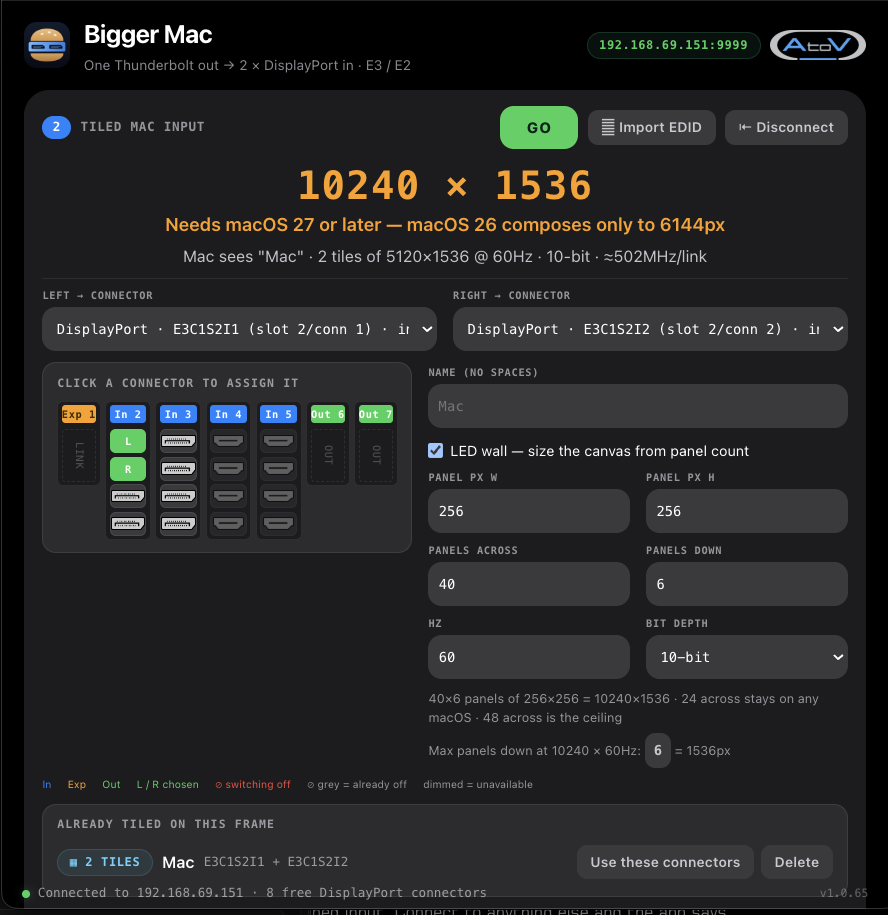
Bigger Mac LED wall mode sizing a 10240 x 1536 canvas from 40 x 6 panels of 256 x 256

40 x 6 panels of 256 x 256 makes 10240 x 1536 – and the app says which macOS that needs.

The app shows its working — 40×6 panels of 256×256 = 10240×1536 — and, more usefully, where the limits fall in panels rather than pixels: how many across stay safe on any macOS, how many are the ceiling, and the maximum panels down at that width and refresh.

That is the whole point of the mode. On site you know the wall is forty panels across and six down. You should not have to do arithmetic to find out whether it will come up.

5. Create it

GO builds the combined input, uploads a per-connector EDID and names everything. The result screen then tells you which physical connectors to plug into — left → slot 2 / conn 1, right → slot 2 / conn 2 — so the cabling is not guesswork.
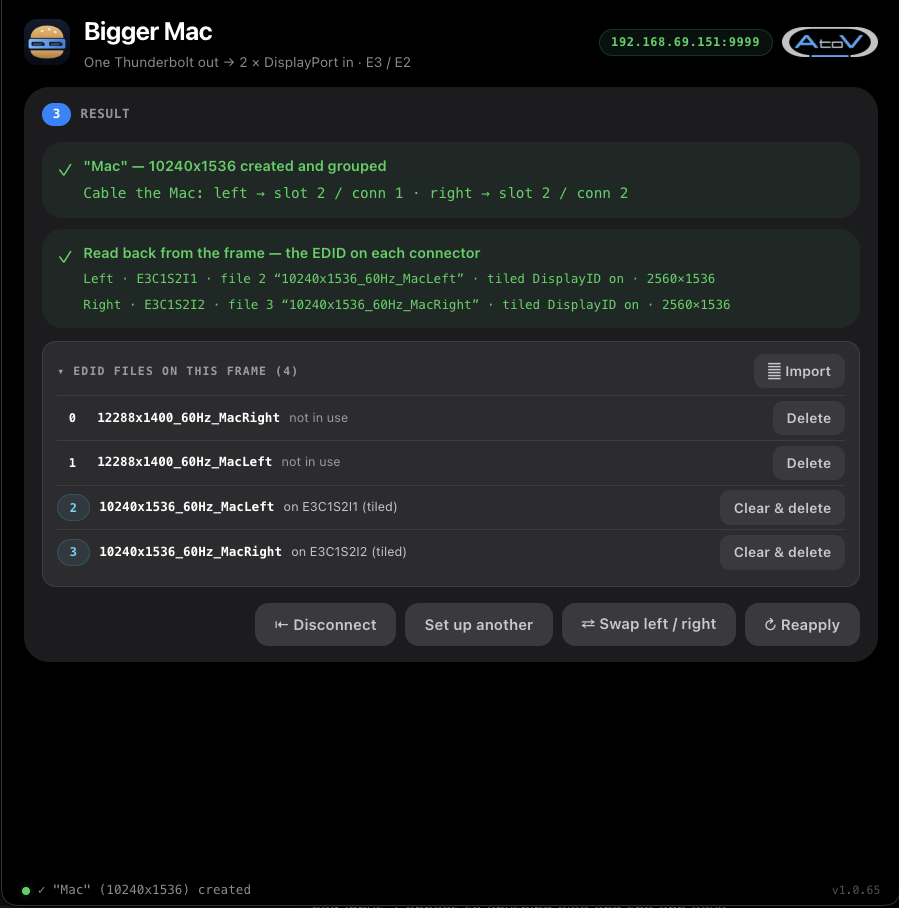
Bigger Mac result screen reading the EDID back off each connector

The result screen reads the EDID back off the frame, connector by connector.

It then reads the EDID back off the frame and shows what is actually on each connector: the file name, the tiled DisplayID flag and the tile size. That is a read of the hardware, not a repeat of what was sent — the difference between believing it worked and knowing it did.

6. Afterwards

From the result screen: Swap left / right if the halves came up the wrong way round, Reapply to push it again, Set up another for the next canvas, or Disconnect.

Every EDID file on the frame is listed, showing which connector each is on and which are unused, with delete buttons for the ones you no longer want. Existing tiled inputs can be deleted to free their connectors, or loaded back into the wizard with Use these connectors to rebuild at a different size when a wall changes.

Free, and as-is

Bigger Mac is free of charge and provided as-is, with no warranty of any kind. A to V Limited accepts no responsibility for your software, your setup or your show. Test it well before show day, as you would any tool that touches a processor.

Download

Mac (Apple Silicon and Intel) and Windows builds are available. Links are emailed to you and last seven days.

Download Bigger Mac →

See the Event Master and switching stock we hire, or get in touch if you want the kit and the people who know it.